
Where do I get a code?
From an organizer using Poltrax (SMS, email or a QR code on your race number).
Guide
Got a code for a race? Poltrax Tracker turns your phone into a GPS tracker — your family will see you live on the map. The app is free; you get the code from the organizer. Everything step by step below.
Tap to open the store
Scan with your phone to download
Open the App Store (or scan the QR code above with your camera).
Search for “Poltrax Tracker” and select the app.
Tap Get and confirm.
After installation, tap Open.
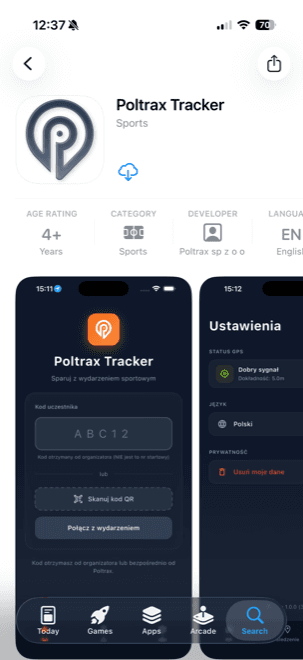
Open Google Play (or scan the QR code above).
Search for “Poltrax Tracker” and select the app.
Tap Install.
After installation, tap Open.
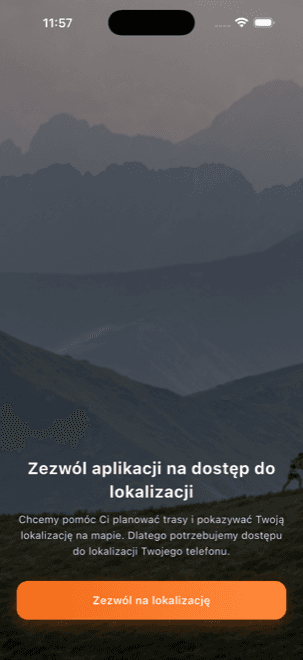
On first launch, choose “Allow always” — without it background tracking won’t work. Android will also ask you to disable battery optimization — confirm (crucial on Huawei / Xiaomi / OPPO). If you see the banner “Background tracking may not work” → tap “Fix settings”.
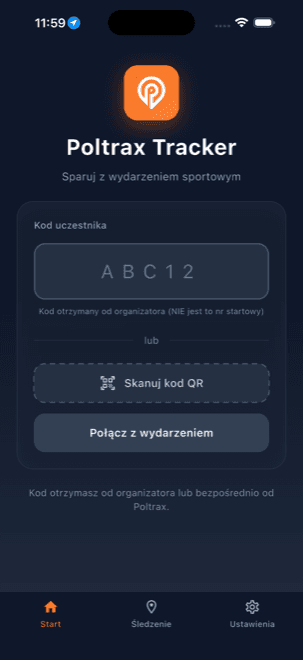
Go to the Tracking tab and tap “Start tracking”. The status changes to “Tracking active”. Put your phone away — your position is streaming live. You can also “Share the tracking link” with your family.
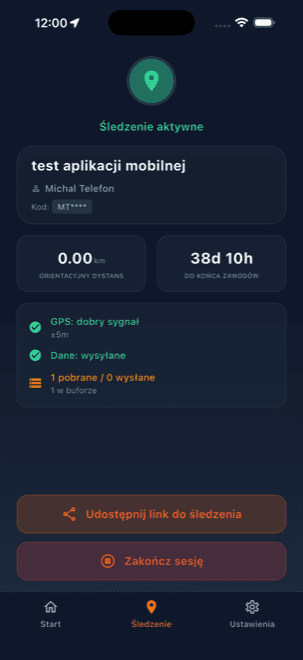
When you’re done, tap “End session” and confirm. Unsent positions are kept and delivered once the network is back.
From an organizer using Poltrax (SMS, email or a QR code on your race number).
No, it is free and does not require a Poltrax account.
GPS tracking always uses battery, but the app picks an economical mode and warns you at a low level. At around 20% it turns tracking off on its own to leave battery for an emergency call. For long races, take a power bank. For safety we recommend: 1. Charge your phone to 100% before the start. 2. Use it as little as possible during the race — enjoy the views, not the screen :)
Yes. Positions are buffered on the phone and sent once the internet is back.
Disable battery optimization for Poltrax Tracker (the app prompts: “Fix settings”). Mostly affects Huawei / Xiaomi / OPPO.
So that tracking works when the phone is in a pocket and the screen is off.
Tracking works only during the race; after the event the app disconnects. In Settings → “Delete my data” you clear the data from your phone.
Ask the organizer for a current code.